
Set up your model profile
Your model profile lives in Model Card, the workspace where you store your name, bio, location, profile photo, social links, and measurements. This article walks through sign-up fields, the three Model Card tabs, and how profile data relates to your public Website.
Where to edit your profile
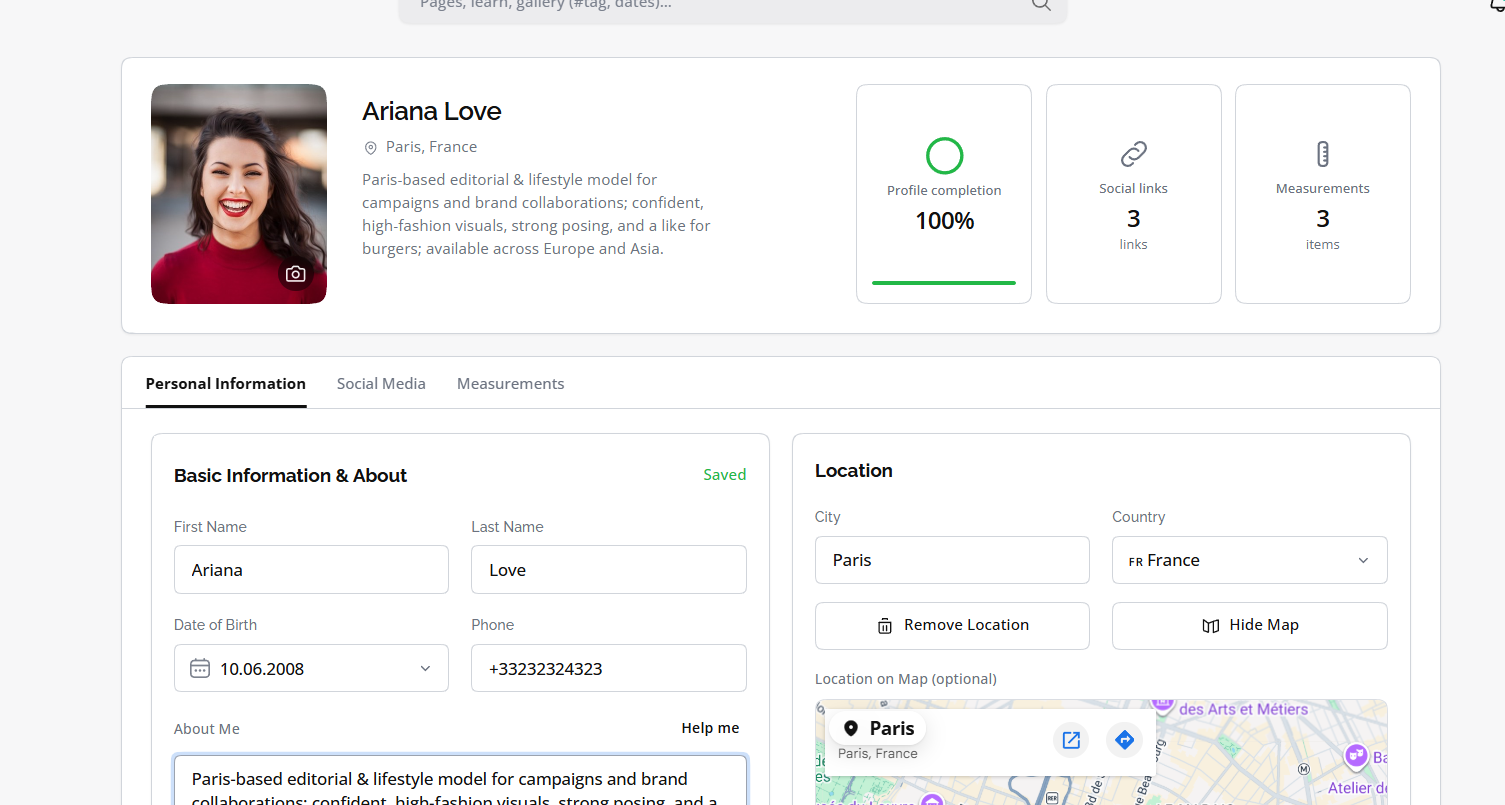
Open Model Card from the dashboard sidebar or mobile tab.
If you have not created a profile yet, select Create Your Profile and complete the form.
You can also enter basic details during sign-up, in the Profile step after account and phone verification.
Fields collected during sign-up
The account step requires your first name, last name, email, and password. The phone step is optional. You can skip it and add a number later in Model Card.
The profile step has three parts. Part one requires your date of birth and confirmation that you are 18 or older. About Me is optional. Parts two and three cover location and social links. You can leave them empty or skip social links entirely.
- Required at sign-up: first name, last name, date of birth, 18+ confirmation
- Optional at sign-up: phone, About Me, city, country, social profile URLs
- Verify your email before you rely on publishing or booking features
Personal Information tab
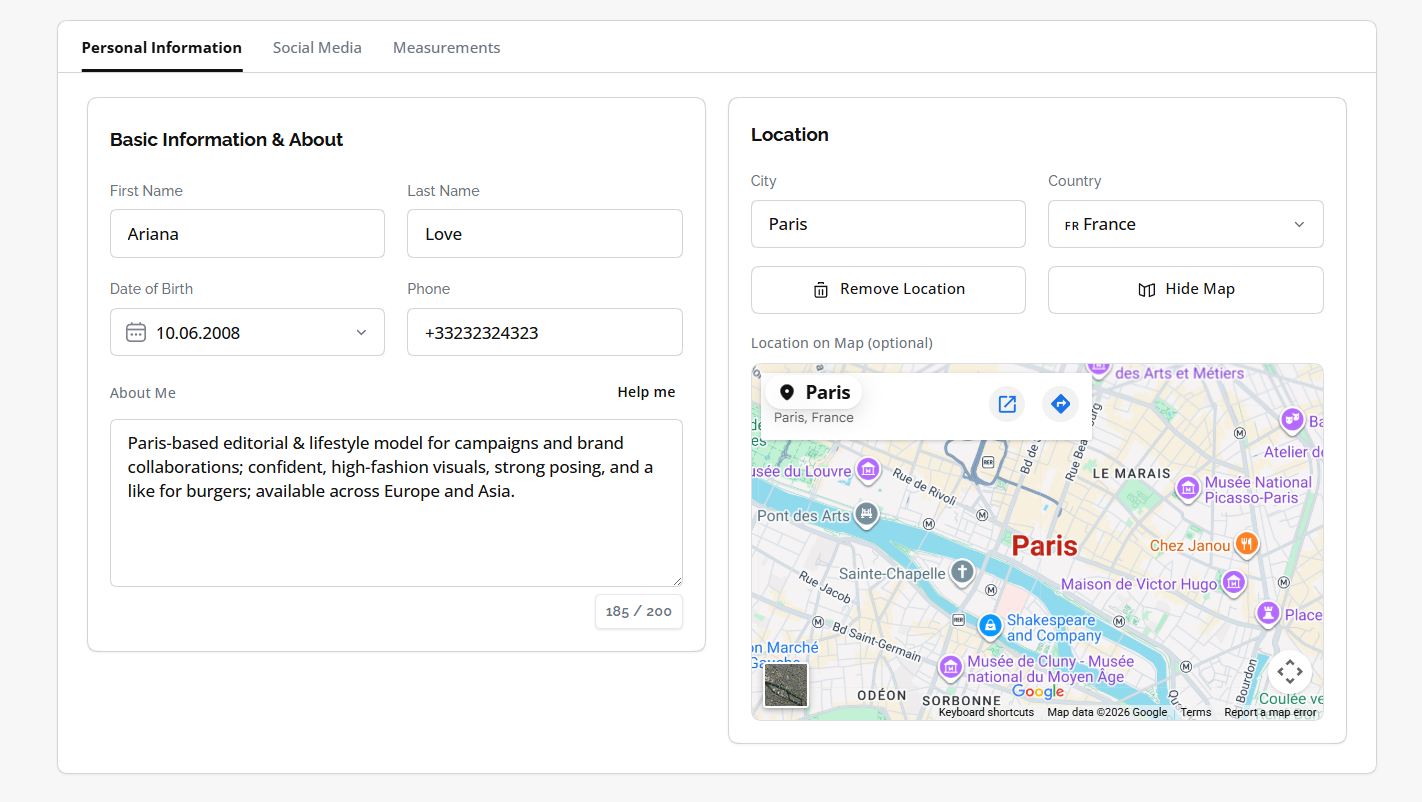
The Personal Information tab groups your core details under Basic Information & About and Location.
Fill in first name, last name, date of birth, and phone. Add About Me to describe your look, shoot types, and experience. If you are unsure what to write, use Help me fill it to answer guided questions and generate a draft bio.
Under Location, enter city and country, or one of the two. You can also open Select Location on Map to search or pick a point on the map; Delora fills city and country from your selection.
Set your profile photo separately. Select Change profile photo, then upload an image or choose an approved gallery photo and crop it to a square. Accepted formats are JPEG, PNG, WebP, and GIF, up to 2 MB.
What stays private and what goes public
Model Card is your private workspace. Profile data is not public by default.
Your public model presence is configured separately in Website. There you choose a subdomain, turn on Reflect User Information to pull name, about, contacts, and measurements from Model Card, or enter custom public copy instead.
Portfolio photos and polaroids are managed in Gallery, not in Model Card. Add those after your core profile fields are in place.
Track progress and continue setup
Model Card shows a Profile Complete percentage based on filled fields such as name, bio, location, profile photo, social links, and measurements. Use it to see what is still missing.
After your core details and profile photo are done, continue with Add your first portfolio photos, then Upload polaroids and Set your measurements. When you are ready to go public, configure your site in Website.

Social Media and Measurements tabs
Model Card has two additional tabs: Social Media and Measurements. Social Media stores one link per platform, including Instagram, TikTok, X, and others listed in the add-link form. Measurements covers height, bust, waist, hips, and other body values, with a Body Map for adding entries by body region.
Adding or editing social links and measurements requires an active subscription. Without a paid plan, you can still view existing entries and remove them. Profile basics, About Me, location, and your profile photo remain editable.
For detailed steps, see Connect social accounts and Set your measurements in this category.