
Add your first portfolio photos
Portfolio photos live in Gallery, separate from Model Card. After your profile basics are in place, upload images here, wait for review, and mark which photos you want public on your Website.
Before you upload
Gallery is available on the Free plan — you do not need a paid subscription to upload. Free includes 3 GB storage and up to 4 collections; Lite and Pro raise those limits. Run through AI is available on paid plans only.
Complete your Model Card first. Your profile photo can later be chosen from approved gallery photos, but portfolio uploads happen only in Gallery.
The dashboard suggests uploading several photos to get started. Treat your first batch as the foundation for your site, booking link, and PDF portfolio.
Open Gallery and start an upload
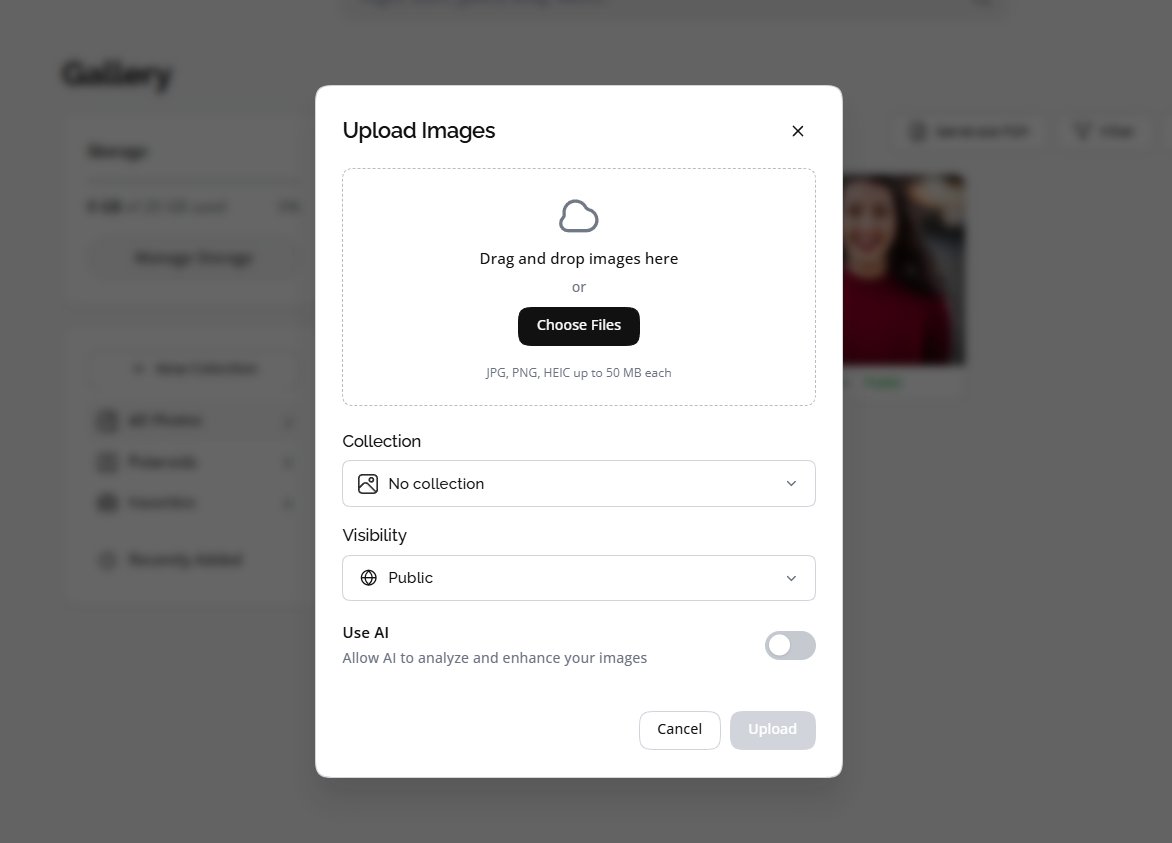
Open Gallery from the sidebar or mobile tab. Select Upload Image, or drag files onto the gallery area.
In the upload modal, pick one or more images. You can upload up to 25 photos per batch. Accepted formats: PNG, JPG, GIF, and WebP, up to 10 MB each.
- Dashboard: Upload Image
- Mobile app: Add Images
- iOS app: Upload (up to 20 photos per batch)
Set options before you submit
Before uploading, review optional settings for each image. You can crop a photo, add tags, assign a collection, and choose whether to make the image public on your Website.
Make this image public controls website visibility after approval. Private photos stay in your gallery but do not appear on your public site.
You can also enable Run through AI to generate name, alt text, and tags after approval. AI usage counts against your monthly plan limit.
Advanced options include alt text and location. Collections help you group photos. Free allows up to 4 collections; Lite up to 10; Pro allows unlimited collections.
What happens after upload
Each file is queued for processing. New items appear in Gallery with an Under review badge while moderation runs.
Delora checks each image automatically. Approved photos appear in your gallery. Rejected photos are removed after you acknowledge them or after 24 hours.
Until a photo is approved, it cannot go public on your Website, even if you marked it public during upload.
Organize photos and control visibility
Use the folder bar to filter by All or by a collection. Create a new collection from the gallery page or during upload.
Edit an approved photo to change tags, collection, alt text, or visibility. Only photos marked Public and approved can appear on your Website.
Storage is limited by plan: Free includes 3 GB, Lite 8 GB, Pro 25 GB. There is no fixed photo count; total file size counts toward your quota.
If you use Website, keep at least three public approved photos visible. Delora blocks hiding or deleting photos when that would drop your public count below three.
How Gallery connects to your site and profile
Website only shows photos that are approved and public.
In Website, choose whether to show all public photos, only selected photos, or photos from a collection.
After you have approved photos, you can set your profile photo from gallery images in Model Card. See Upload polaroids for the four featured digitals slots.
