
Connect social accounts
Social links live in the Social Media tab of Model Card. Add one URL per platform so clients can open your Instagram, TikTok, X, or other profiles from your Delora presence. Links are optional and count toward Profile Complete.
Where to add social links
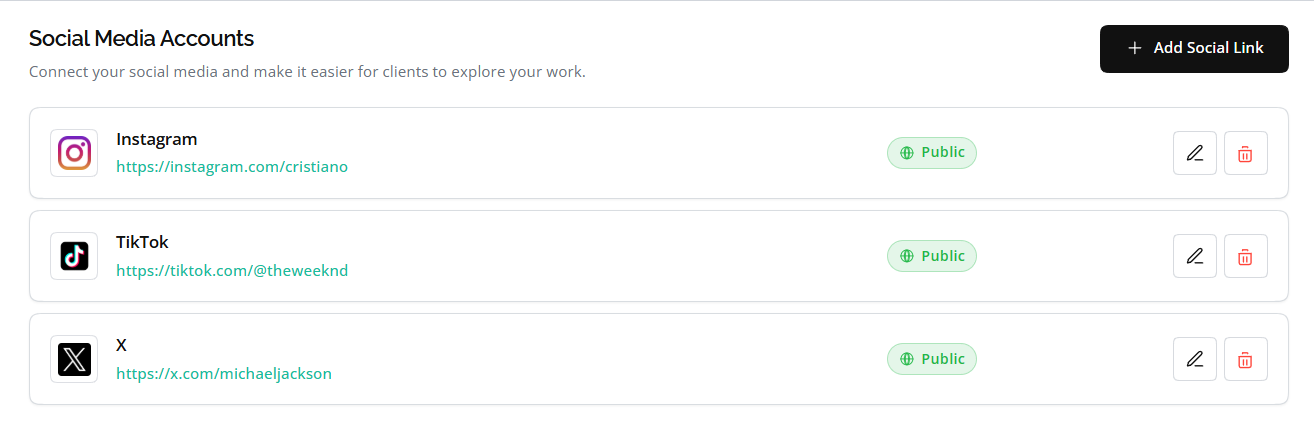
Open Model Card and select the Social Media tab. Select Add Social Link to open the form.
You can also add links during Getting started on the optional Add social links step.
Before you start
Social links are optional. Delora does not require any platform before you use Gallery, Bookings, or your Website.
Model Card is your private workspace. Saving a link here does not publish it everywhere automatically. Your website and booking link have separate toggles for whether social links appear.
Use professional profile URLs you are comfortable sharing with clients and casting teams. Personal or inactive accounts are better left out.
- One link per platform
- Full Profile URL required, not just a handle
- Domain must match the selected platform
- Custom platforms need a complete https URL
Supported platforms
When you add a link, the Platform dropdown lists Instagram, TikTok, X, LinkedIn, Snapchat, Pinterest, Behance, OnlyFans, Facebook, WhatsApp, and Custom.
Choose Custom when your site is not in the list. Enter a platform name, such as Discord, Patreon, or portfolio, then paste the full profile URL.
Delora allows only one link per platform.
Edit and remove links
Each saved link appears as a card with the platform name, URL, and action buttons.
Select the edit icon to update the Profile URL. The platform cannot be changed on edit.
Select the remove icon to delete a link.
Where links appear publicly
Saved social links can appear on your Website, booking link, and portfolio exports.
In Website, open Site features and set Social links to On to show them on your public site.
In Bookings, enable Show socials in share settings to include links on your booking page.
Track progress and continue setup
Social links count toward Profile Complete in Model Card.
When your links are in place, open Website to choose whether they appear on your public site.
